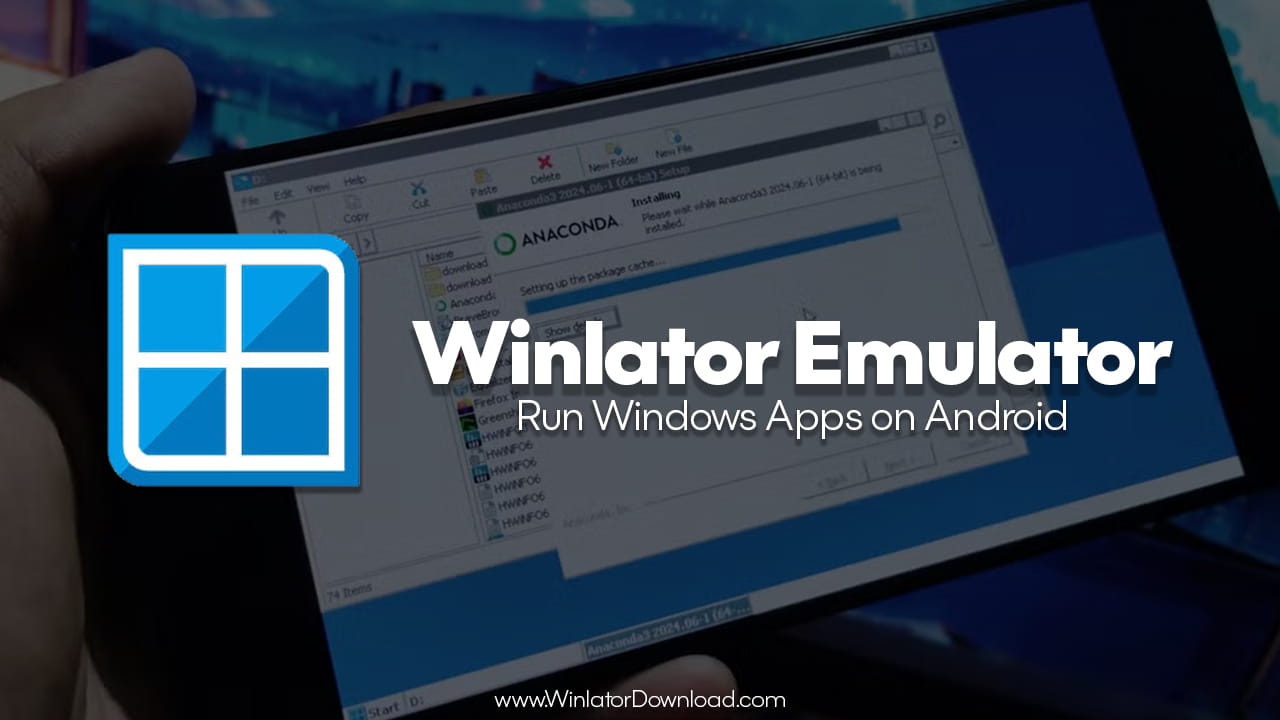
Winlator Emulator changes how Android devices run Windows software. It connects mobile hardware with desktop programs in a smart way. As a result, users can open many Windows apps on ARM-based phones and tablets. Winlator Emulator works as an open-source project, so anyone can use it for free. Moreover, it helps gamers and professionals carry PC tools in their pockets.
Most Android devices use ARM processors. However, many Windows apps need x86 or x64 processors. Winlator Emulator solves this problem with smart translation tools. Because of this, users can run old PC games and work software on mobile devices. The goal stays simple. It makes Windows apps work on Android without changing the original files. Therefore, many tech users now explore this solution for gaming and productivity.
Understanding the Architecture of Winlator Emulator
Winlator Emulator uses different layers to make Windows apps run smoothly. First, it uses Wine to translate Windows API calls. Wine changes those calls into commands that the Android Linux kernel understands. So, Windows software can talk to Android hardware without confusion.
However, translation alone is not enough. Android phones mostly use ARM chips. Windows programs usually run on x86 systems. For this reason, Winlator Emulator integrates Box86 and Box64. These tools convert x86 instructions into ARM instructions. As a result, many desktop apps run with good speed.
Graphics also matter. Therefore, Winlator Emulator uses DXVK and D8VK. These tools convert DirectX 9, 10, and 11 calls into Vulkan API commands. Because Android GPUs support Vulkan, games can render 3D scenes more easily. This setup helps improve frame rates and visual quality.
Key Features of Winlator Emulator
Winlator Emulator includes features that improve performance and control. Each feature helps users customize their experience.
Driver Support
Winlator Emulator supports Turnip, Zink, and VirGL drivers. These drivers connect the emulator to the device GPU. For example, Snapdragon processors often work well with Turnip. So, users can choose drivers based on their phone chipset. This flexibility improves stability and speed.
Container Management
Users can create multiple containers inside Winlator Emulator. Each container holds its own settings. For instance, one container can run a game at 800×600 resolution. Another container can run office software at a higher resolution. Because of this separation, apps do not affect each other.
Custom Input Controls
Touch screens do not work like keyboards or gamepads. Therefore, Winlator Emulator offers a control editor. Users can design virtual buttons and joysticks. As a result, PC games feel more natural on mobile screens.
Storage Mapping
File access stays simple. Winlator Emulator lets users map Android folders as Windows drives. For example, internal storage can appear as Drive D:. So, moving files between Android and Windows apps becomes easy.
Winlator Apk Download and Installation
The first step starts with the official Winlator Apk Download. It is important to download the APK from the official source. This reduces security risks and ensures updated files. After installing the APK, users must also download the OBB file.
The OBB file contains image data needed to start the Windows environment. Without this file, Winlator Emulator cannot launch properly. Therefore, placing the OBB file in the correct Android/obb directory is very important. Once everything is in place, users can open the app and create their first container.
Optimized Setup for Better Performance
After installation, users should adjust settings carefully. Small changes can improve performance.
Container Resolution
Matching the screen resolution to the device ratio helps display clarity. However, lowering it to 800×600 or 1280×720 often improves frame rates. Lower resolution reduces GPU load. So, games may run smoother.
Graphics Driver Selection
For Snapdragon devices, Turnip with DXVK often gives strong 3D performance. Other chipsets may work better with Zink or VirGL. Therefore, testing different drivers helps find the best result.
Audio Configuration
PulseAudio usually provides stable sound output. Good audio sync improves gaming and software use. So, checking sound settings avoids delays and glitches.
Older phones may only handle simple tools like Notepad++ or older 2D games. High-end devices with Snapdragon 8 series processors handle heavier 3D games better. Hardware power plays a big role in smooth performance.
Maximizing Gaming Performance
Fine tuning improves results. Users can adjust environment variables inside Winlator Emulator. For example, enabling DXVK_HUD shows real-time performance data. This helps monitor frame rates.
Some legacy apps need special tweaks. Users may change Wine versions or apply winetricks. These tweaks fix missing DLL files or startup crashes. Also, disabling certain CSMT settings sometimes increases stability. Each game behaves differently. Therefore, testing different settings helps achieve better results.
Safety and Security
Winlator Emulator runs Windows software inside a virtual space. However, users must still stay careful. Downloading apps from unknown websites increases risk. Because Windows programs can contain malware, only trusted sources should be used.
Open-source development improves transparency. Developers review the code regularly. Even so, safe user behavior remains important. Keeping files organized and avoiding suspicious downloads protects the device.
Future Development of Winlator Emulator
Mobile hardware improves every year. Because of this growth, Winlator Emulator continues to improve too. Developers focus on memory management and multi-core support. They also update compatibility with new Android versions.
As processors become stronger, more demanding Windows apps may run smoothly. This progress suggests a future where smartphones act like full computers. Winlator Emulator supports that idea by reducing the gap between desktop and mobile systems.
Troubleshooting Common Issues
Sometimes an app may fail to launch. First, users should check container logs. Logs show error details.
Switching Wine versions can solve compatibility problems. For example, changing from Wine 8.0 to a staging build may fix crashes. Also, disabling certain registry options like CSMT can improve stability.
Another common issue involves the OBB file. If Winlator Emulator cannot detect it, users should confirm its placement in Android/obb/com.winlator. Correct file placement solves many startup errors.
Frequently Asked Questions
Is Winlator Emulator free?
Yes, Winlator Emulator is open-source and free to use.
Can Microsoft Office run on Winlator Emulator?
Many versions of Microsoft Office work inside Winlator Emulator. However, performance depends on the version and device power.
Is root access required?
No root access is needed. Winlator Emulator uses PRoot, so it works on standard Android devices.
Does it support controllers?
Yes, Bluetooth and USB controllers can connect. Users can map buttons inside settings for better gaming control.
Winlator Emulator plays an important role in mobile computing. It helps users run Windows apps on Android without complex steps. Through translation layers, smart drivers, and flexible containers, it makes desktop software portable. As hardware improves, Winlator Emulator will likely support even more powerful applications in the future.